
Gmail & Outlook Two-Way Email Sync
RevStackr supports full Two-Way Email Sync for Google Workspace and Microsoft 365. This allows your personal inbox and the CRM to "talk" to each other perfectly, ensuring every conversation is tracked regardless of which app you use to reply.
[ ⚔️ ASSET ATTACHMENT: TWO_WAY_SYNC_WALKTHROUGH.MP4 ]
Phase 1: Admin / Account Owner Setup
Administrators must first ensure that users are added to the account before those users can connect their mailboxes.
- Go to Team Settings: Everything for user management happens inside your business settings. 1. Click Settings at the bottom left of your sidebar. 2. Click My Staff (or Team).
- Add the Team Member: 1. Click the Add Employee button. 2. Fill in their name and their business email address. Save the record.
- Set the Right Permissions: Click Edit on the user you just made. Under User Permissions, make sure these are turned ON: • Conversations: So they can see emails. • Contacts: So they can find people. • Settings: So they can see their own profile to connect.
Each person must connect their own mailbox. This is for privacy and security—Admins cannot connect a user's private email for them.
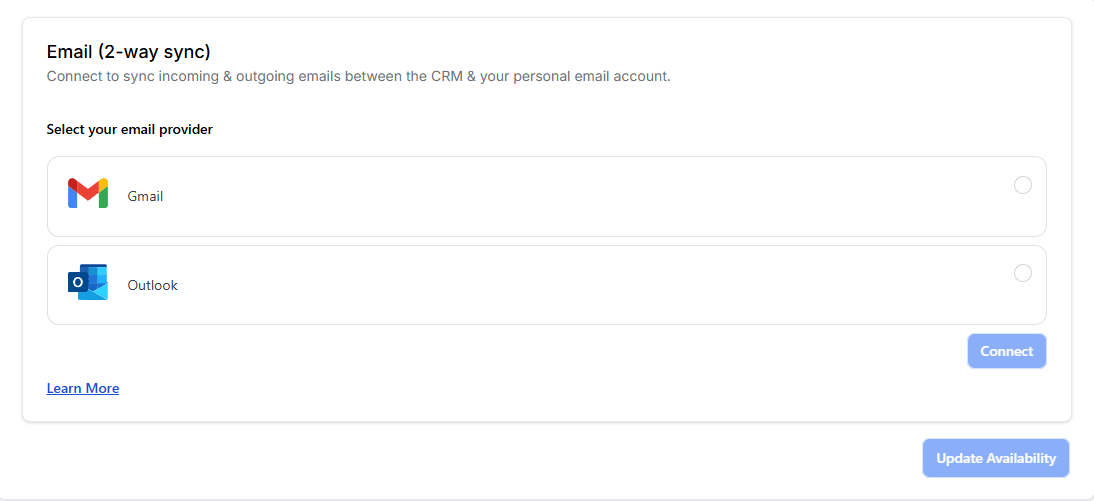
- Find the Profile Settings: 1. While logged in as the user, go to Settings. 2. Click on My Profile. 3. Scroll down until you see a box labeled Email (Two-Way Sync).
-
Connect the Mailbox:
1. Choose your provider: Click Connect Gmail or Connect Outlook.
2. A standard login window will pop up. Sign in to your email account. 3. Click Allow or Accept when it asks for permission to read and send emails. 4. Once finished, the box will say Connected.
- Starting the Sync: To "wake up" the sync, the first email should always start from the CRM. 1. Open any Contact Record. 2. Go to the Conversations tab. 3. Send a test email to that contact. 4. Go check your normal Outlook/Gmail Sent Folder. You should see the email there too!
Gmail (Google): Incoming emails from contacts already in your CRM will usually appear in the Conversations tab automatically.
Outlook (Microsoft): The conversation "thread" must be started from RevStackr first to ensure perfect synchronisation back and forth.